Two-factor sign-in
Off unless you turn it on. Once it's on, signing in with your password also asks for a 6-digit code from an authenticator app on your phone, so a stolen password alone doesn't open your account. Signing in with Google or Microsoft doesn't change: your organisation's own protection covers those.
For everyone who doesn't turn it on, signing in stays exactly as it is.
Turn it on for yourself
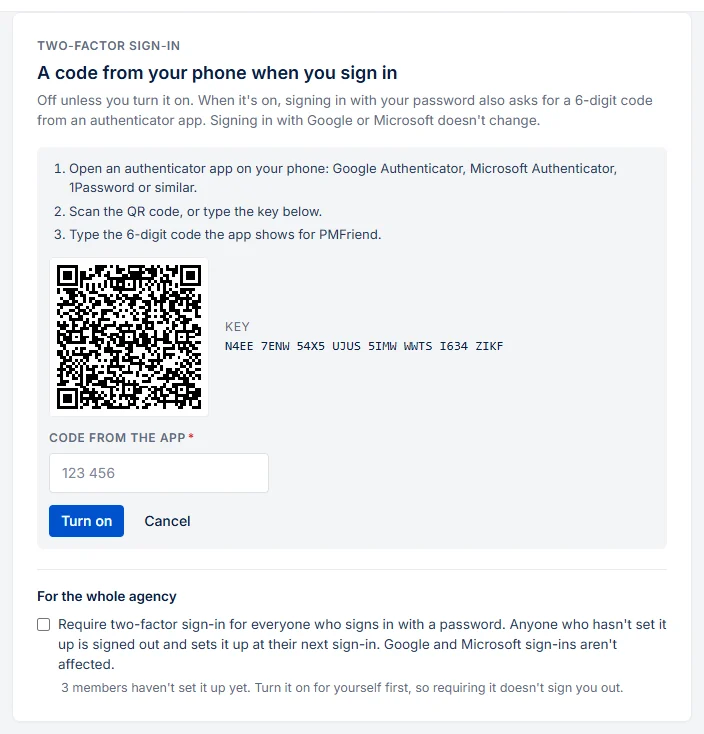
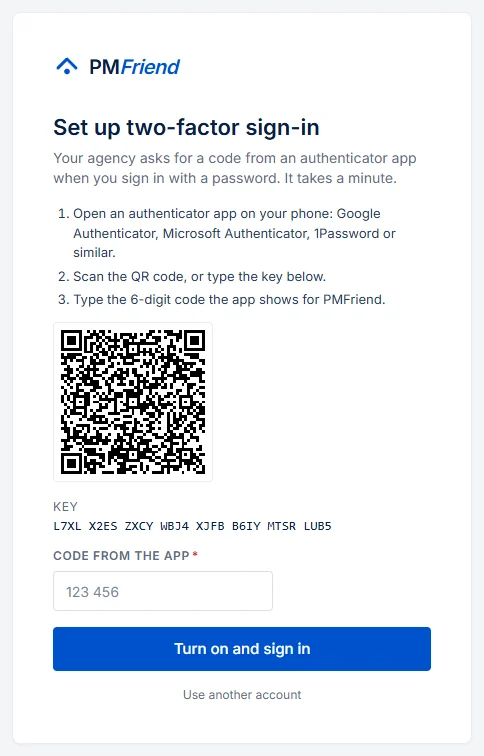
- Go to Settings → Two-factor sign-in and click Set up two-factor sign-in.
- Open an authenticator app on your phone (Google Authenticator, Microsoft Authenticator, 1Password or similar) and scan the QR code, or type the key shown next to it.
- Type the 6-digit code the app shows for PMFriend and click Turn on.
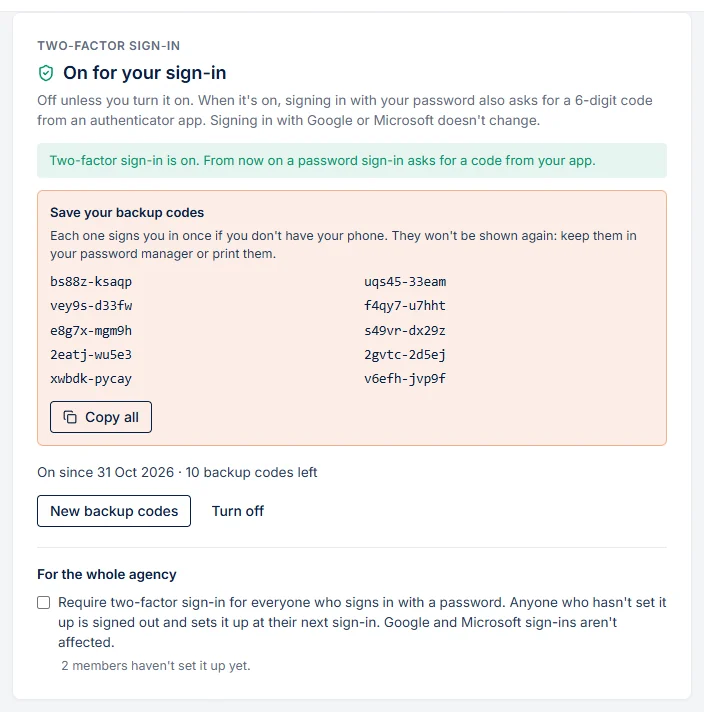
PMFriend then shows ten backup codes, once. Each signs you in a single time when you don't have your phone. Keep them in your password manager or print them; Copy all puts them on your clipboard.
Signing in
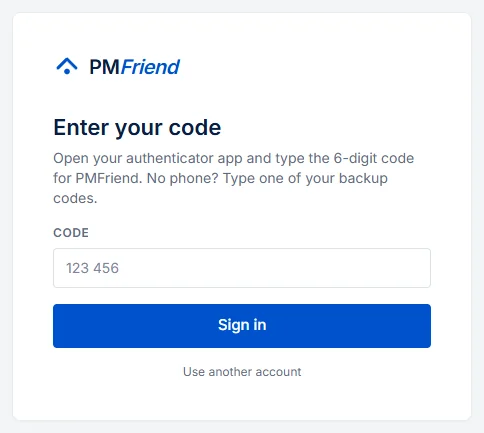
You type your e-mail and password as usual, then the code your app shows. No phone? Type one of your backup codes instead.
- A code works once, and only for the half-minute around when the app shows it.
- After ten wrong codes in a quarter of an hour, PMFriend asks you to wait a few minutes.
- Signing in through Claude or ChatGPT (the AI connector) uses the same sign-in page, so it asks for the code too.
New backup codes, or turning it off
In Settings → Two-factor sign-in:
- New backup codes makes ten fresh codes; the old ones stop working. It asks for a code first.
- Turn off asks for a code too. If your agency requires two-factor sign-in, it stays on.
For admins: require it for the whole agency
Under For the whole agency in the same card, tick Require two-factor sign-in for everyone who signs in with a password. It's off by default.
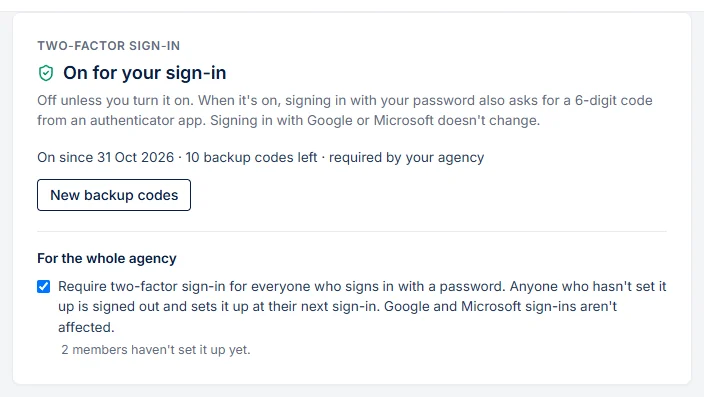
- Turn it on for yourself first (or be signed in with Google or Microsoft), so requiring it doesn't sign you out.
- Anyone who signed in with only a password is signed out at their next click. At their next sign-in, PMFriend walks them through the setup there and then, and shows their backup codes.
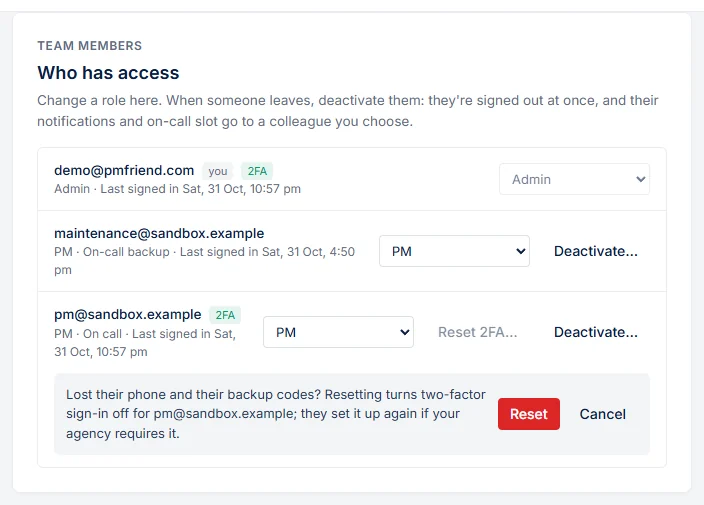
- The card shows how many team members haven't set it up yet, and the team list shows 2FA next to everyone who has.
Lost phone
Use a backup code to sign in, then set it up again on the new phone (Turn off, then Set up). No backup codes left? An admin opens Settings → Team members and clicks Reset 2FA… next to that person. They sign in with their password and, if the agency requires it, set it up again.
Every change (turned on, turned off, new backup codes, reset by an admin, the agency switch) is a line in the audit log.
What it doesn't change
- Google and Microsoft sign-ins never ask for a PMFriend code, required or not.
- AI assistant connections made before the agency required it keep working. Revoke them under Settings → Connected assistants if everyone should connect again.
- The public sandbox on our website keeps signing in as it is: everyone shares its login, so two-factor sign-in isn't offered there.
- No text-message codes. Codes come from an authenticator app only.