Connect your AI assistant
PMFriend works inside the AI assistant your team already uses. You add one address, sign in to PMFriend once, and from then on you ask about your portfolio in plain words: "Which keys are out?", "What's overdue this week?", "What did plumbing cost us in October?". What it can answer: Ask your portfolio anything.
The address is the same for every assistant:
https://app.pmfriend.com/api/v1/mcp
| Assistant | Where you add it |
|---|---|
 Gemini | Connectors → + Custom |
 Microsoft Copilot Studio | Your agent → Tools → + Add → Model Context Protocol (MCP) |
 ChatGPT | Settings → Connectors → Add custom connector |
 Claude | Settings → Connectors → Add custom connector |
Before you start
- Who signs in: a property manager or an agency admin. The assistant then sees that person's agency, and nothing of any other agency.
- What it may do: PMFriend asks once, when you connect. Reading is always included. Tick Propose changes only if you want the assistant to suggest changes; each one still waits for a person to approve it in PMFriend.
- Viewers (people invited as Viewer (read only)) can connect and ask anything, but never propose a change.
- Tenant names and contact details never leave PMFriend through the assistant.
Gemini
-
Open Gemini on the web, go to Connectors (gemini.google.com/customize/connectors) and press + Custom.

-
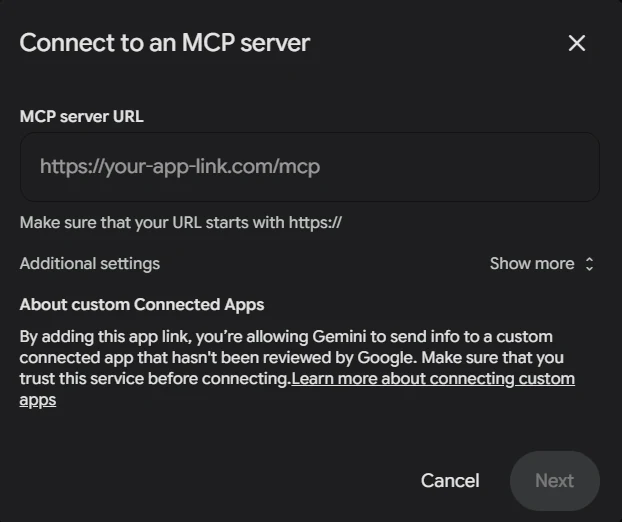
Paste the address above into MCP server URL and press Next.
-
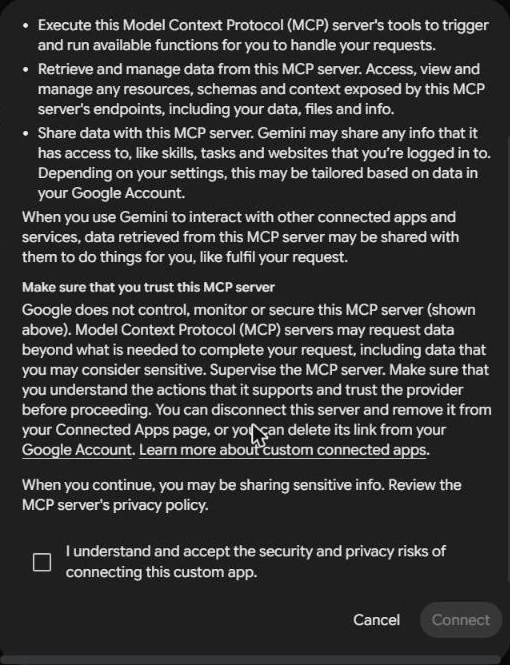
Gemini explains what a custom app can do. Tick I understand and accept the security and privacy risks of connecting this custom app and press Connect.
-
PMFriend opens its own page: sign in if asked, check that the agency name is yours, tick Propose changes if you want it, and press Allow.
-
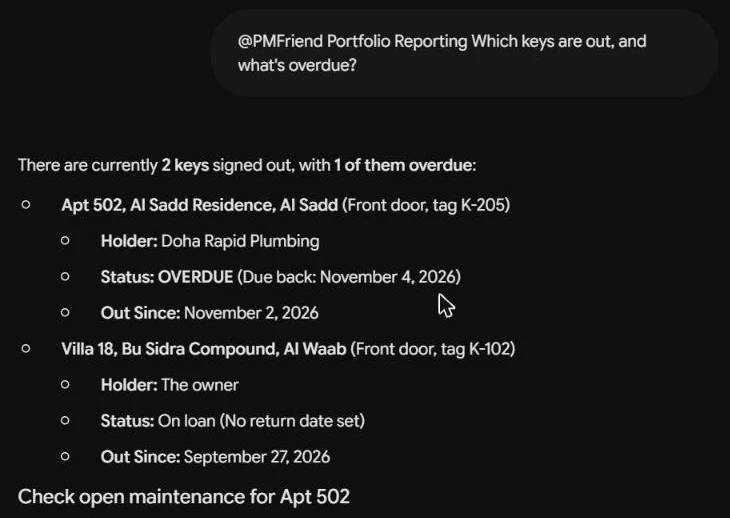
In a chat, type @PMFriend Portfolio Reporting and your question.
Microsoft Copilot Studio
For agencies on Microsoft 365: an agent you build in Copilot Studio answers from PMFriend.
-
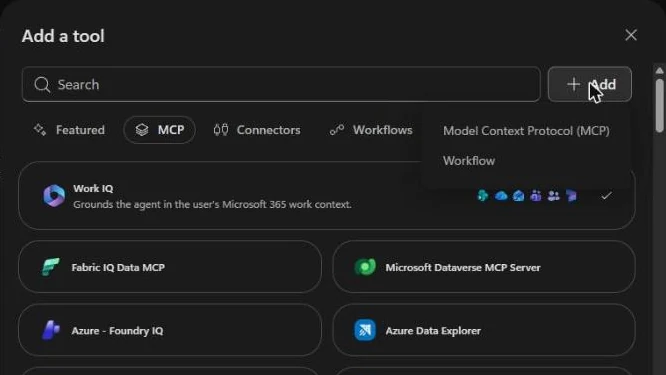
Open your agent (or create one: Home → Agent). Next to Tools, press +, then + Add → Model Context Protocol (MCP).
-
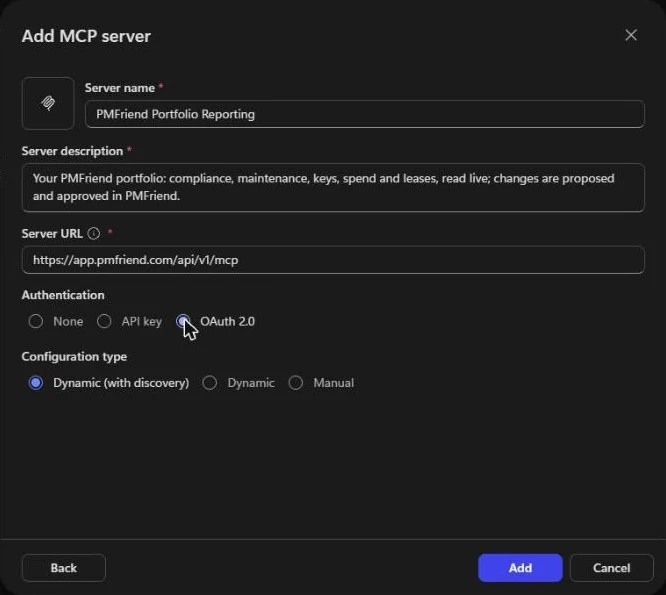
Fill in the server:
- Server name: PMFriend Portfolio Reporting
- Server description: for example Your PMFriend portfolio: compliance, maintenance, keys, spend and leases
- Server URL: the address above
- Authentication: OAuth 2.0, with Dynamic (with discovery)
Press Add.
-
Choose Create new connection and press Create. PMFriend opens in a window: check the agency, tick Propose changes if you want it, and press Allow.
-
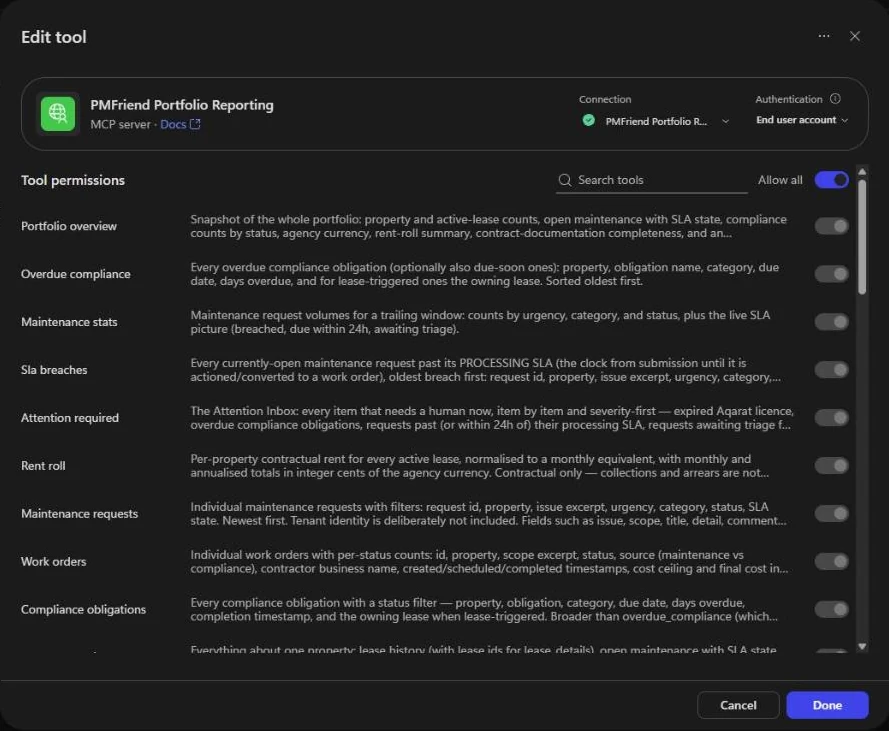
Every PMFriend tool appears in the list. Keep Allow all, or switch off what this agent shouldn't use.
-
Ask in Preview, then publish the agent for your team.
What Copilot Studio needs from your Microsoft 365: an environment with Dataverse, where it keeps agents, and Copilot credits, which it uses to run them. If it says Dataverse isn't set up in this environment or This environment is out of credits, your Microsoft 365 admin adds them. PMFriend connects either way; the agent answers once credits are there.
ChatGPT and Claude
- In ChatGPT or Claude: Settings → Connectors → Add custom connector, enter the address above with OAuth.
- PMFriend opens its page: sign in, check the agency, tick Propose changes if you want it, press Allow.
- Ask your first question.
A new PMFriend feature doesn't show in ChatGPT? ChatGPT keeps its own list of what a connection can do. Open the connection's settings and press Refresh tools, then ask again in a new chat.
Why you may be asked twice
There are up to three approvals, and each is for something different:
-
Once, in PMFriend, when you connect: what the assistant may do at all, read only or also propose changes. You can disconnect it any time (see below).
-
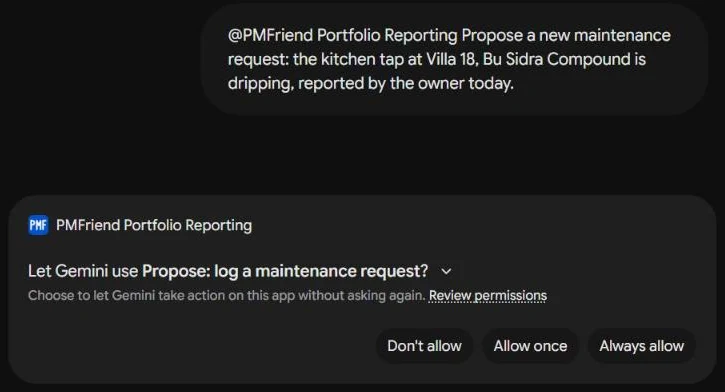
In the assistant, before it uses a PMFriend tool that does something, such as proposing a change or sending us a suggestion. Gemini asks "Let Gemini use Propose: log a maintenance request?"; ChatGPT asks in its own words. This question comes from Gemini or ChatGPT, not from PMFriend, so we can't switch it off. Questions that only read are answered straight away. Choose Always allow for PMFriend's tools and it stops asking: at this point nothing has changed in PMFriend yet.
-
In PMFriend, for every change: the approval that counts. The proposal waits on your Attention page until someone in your agency approves or rejects it. Nothing changes before that. How proposals work.
See and disconnect your assistants
Settings → Reporting API → Connected assistants lists every connection, with who connected it and what it may do, and a Disconnect button. Gemini shows there as Google, and Copilot Studio as Credential Manager (the name Microsoft's connector gives itself).
Assistants that can't sign in this way can use a key address instead: an admin creates one under Settings → Reporting API. It reads only.
In Qatar and the Gulf
Most operators in the Gulf run Microsoft 365, so Copilot Studio is usually the one to start with. Amounts come in your agency's currency (QAR or AUD), and it works the same for Australian and Qatar agencies.
ChatGPT and the OpenAI logo are trademarks of OpenAI. Claude is a trademark of Anthropic. Gemini is a trademark of Google LLC. Microsoft Copilot Studio and its icon are trademarks of the Microsoft group of companies; the icon is used under Microsoft's terms for documentation. The names and icons show which assistants work with PMFriend; none of these companies endorses PMFriend.